1. What MySQL is
MySQL is a relational database: it stores data in tables made of rows and columns, and you talk to it with SQL. It's one of the most used databases in the world — WordPress, many e-commerce sites and countless company apps run on it. MariaDB is a community fork that works almost the same way.
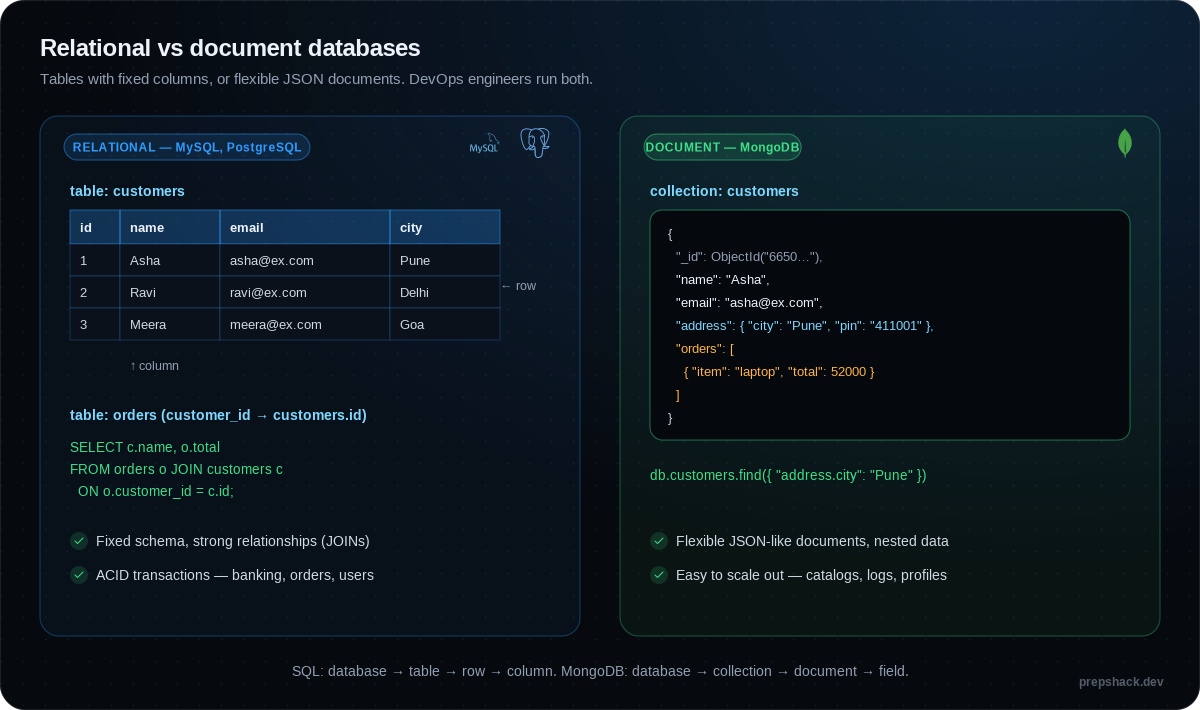
How it's organised:
- A server (the
mysqldprocess) listens on port 3306. - The server holds many databases (also called schemas), such as
shoporanalytics. - Each database has tables, such as
customersandorders. - Each table has columns (fields with a type, like
name VARCHAR(100)) and rows (the actual records).
As a DevOps engineer you won't write complex queries every day, but you must be able to install MySQL, log in, create a database and user for an app, check that data is there, and take and restore backups.
2. Install and start MySQL
Option A: on Ubuntu
sudo apt update
sudo apt install -y mysql-server
sudo systemctl enable --now mysql      # start now and on every boot
sudo systemctl status mysql
sudo mysql_secure_installation         # set root password, remove test DB and anonymous users
Config lives in /etc/mysql/. By default MySQL only listens on 127.0.0.1. To accept connections from other machines, set bind-address = 0.0.0.0 in /etc/mysql/mysql.conf.d/mysqld.cnf, restart, and open port 3306 only to the app servers.
Option B: in Docker (fastest for practice)
docker run -d --name mysql \
  -e MYSQL_ROOT_PASSWORD=rootpass \
  -e MYSQL_DATABASE=shop \
  -e MYSQL_USER=shop_app \
  -e MYSQL_PASSWORD=apppass \
  -p 3306:3306 \
  -v mysql-data:/var/lib/mysql \
  mysql:8.4
- The
-evariables create a database and user on first start. -v mysql-data:/var/lib/mysqlkeeps the data in a volume. Without it, deleting the container deletes your data.
docker logs -f mysql                 # wait for "ready for connections"
docker exec -it mysql mysql -u root -p
3. Log in
mysql -u root -p                                  # local, asks for the password
mysql -h db.prod.internal -P 3306 -u shop_app -p shop    # remote host, port, user, database
sudo mysql                                        # Ubuntu: root can log in via the OS user
-uuser,-pprompt for password (never type the password after-pon the command line — it ends up in shell history),-hhost,-Pport, and the last word is the database to open.- Inside the client, every SQL statement ends with
;. Typeexitto leave.
4. Look around: SHOW and DESCRIBE
SHOW DATABASES;             -- every database on the server
USE shop;                   -- switch to the "shop" database
SHOW TABLES;                -- tables in the current database
DESCRIBE orders;            -- columns, types, keys of a table (short: DESC orders;)
SHOW CREATE TABLE orders\G  -- the full CREATE statement (\G = vertical output)
SELECT DATABASE();          -- which database am I in?
SELECT USER();              -- which user am I logged in as?
SHOW PROCESSLIST;           -- who is connected and what are they running
SHOW PROCESSLIST is very useful in incidents: it shows long-running queries and how many connections the app has open.
5. Create a database, a user and permissions
This is the task you'll do most: give a new app its own database and its own user with only the permissions it needs.
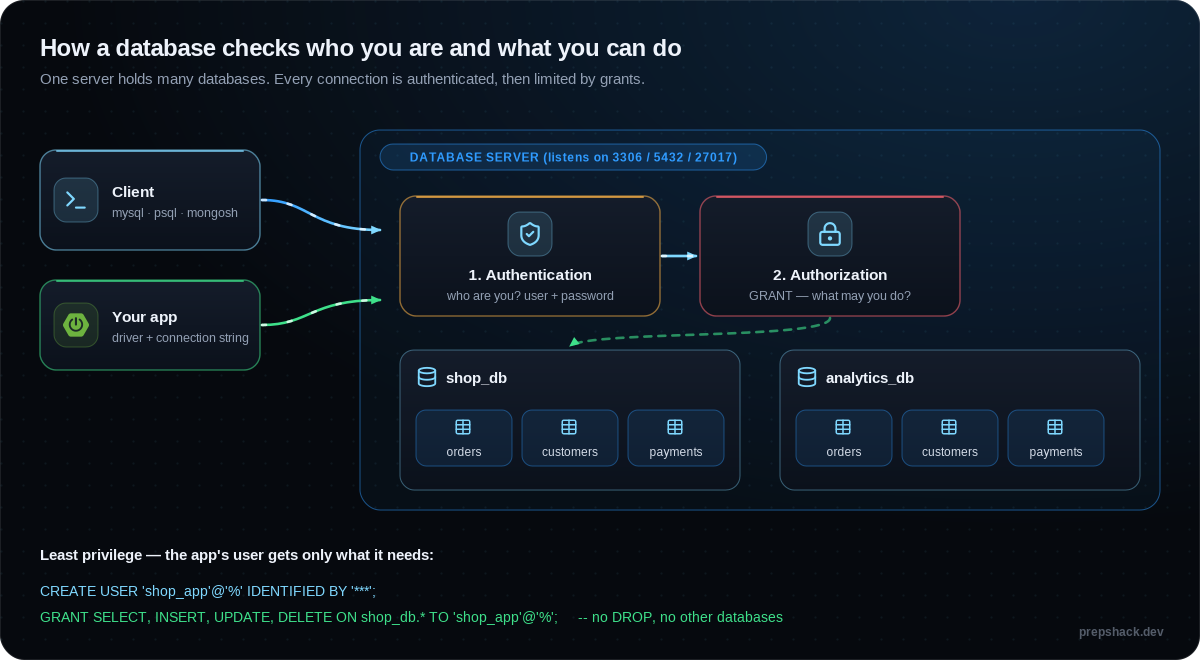
CREATE DATABASE shop CHARACTER SET utf8mb4 COLLATE utf8mb4_unicode_ci;

CREATE USER 'shop_app'@'10.0.%' IDENTIFIED BY 'Str0ng-Pass!';    -- may connect from 10.0.x.x only

GRANT SELECT, INSERT, UPDATE, DELETE ON shop.* TO 'shop_app'@'10.0.%';

SHOW GRANTS FOR 'shop_app'@'10.0.%';      -- check what the user may do
- A MySQL user is
'name'@'host'— the host part says where the user may connect from.'%'means anywhere,'localhost'means only on this machine,'10.0.%'means any 10.0.x.x address. shop.*means every table in theshopdatabase.- Least privilege: the app gets
SELECT, INSERT, UPDATE, DELETE— notDROP, not access to other databases. If the app is ever hacked, the damage is limited. - A migration user might additionally need
CREATE, ALTER, INDEX.
ALTER USER 'shop_app'@'10.0.%' IDENTIFIED BY 'N3w-Pass!';   -- change a password
REVOKE DELETE ON shop.* FROM 'shop_app'@'10.0.%';            -- remove a permission
DROP USER 'old_app'@'%';
6. Create tables and work with data
USE shop;

CREATE TABLE customers (
  id         INT AUTO_INCREMENT PRIMARY KEY,
  name       VARCHAR(100) NOT NULL,
  email      VARCHAR(150) NOT NULL UNIQUE,
  city       VARCHAR(50),
  created_at TIMESTAMP DEFAULT CURRENT_TIMESTAMP
);

CREATE TABLE orders (
  id          INT AUTO_INCREMENT PRIMARY KEY,
  customer_id INT NOT NULL,
  total       DECIMAL(10,2) NOT NULL,
  status      VARCHAR(20) DEFAULT 'NEW',
  FOREIGN KEY (customer_id) REFERENCES customers(id)
);
- PRIMARY KEY — uniquely identifies each row.
AUTO_INCREMENTnumbers rows 1, 2, 3… automatically. - UNIQUE — no two rows can have the same email.
- FOREIGN KEY —
orders.customer_idmust match a realcustomers.id.
-- Insert
INSERT INTO customers (name, email, city) VALUES
  ('Asha', '[email protected]', 'Pune'),
  ('Ravi', '[email protected]', 'Delhi');
INSERT INTO orders (customer_id, total) VALUES (1, 52000.00), (1, 899.00), (2, 1499.00);

-- Read
SELECT * FROM customers;
SELECT name, city FROM customers WHERE city = 'Pune';
SELECT * FROM orders ORDER BY total DESC LIMIT 5;
SELECT COUNT(*) FROM orders;
SELECT status, COUNT(*) FROM orders GROUP BY status;

-- Join two tables
SELECT c.name, o.total, o.status
FROM orders o
JOIN customers c ON o.customer_id = c.id;

-- Update and delete (ALWAYS with a WHERE clause!)
UPDATE orders SET status = 'SHIPPED' WHERE id = 1;
DELETE FROM orders WHERE id = 3;
Danger:
UPDATE orders SET status = 'SHIPPED';withoutWHEREchanges every row. In production, run aSELECTwith the sameWHEREfirst to see what you're about to change, and use a transaction (START TRANSACTION; ... ROLLBACK;orCOMMIT;).
7. Backup and restore with mysqldump
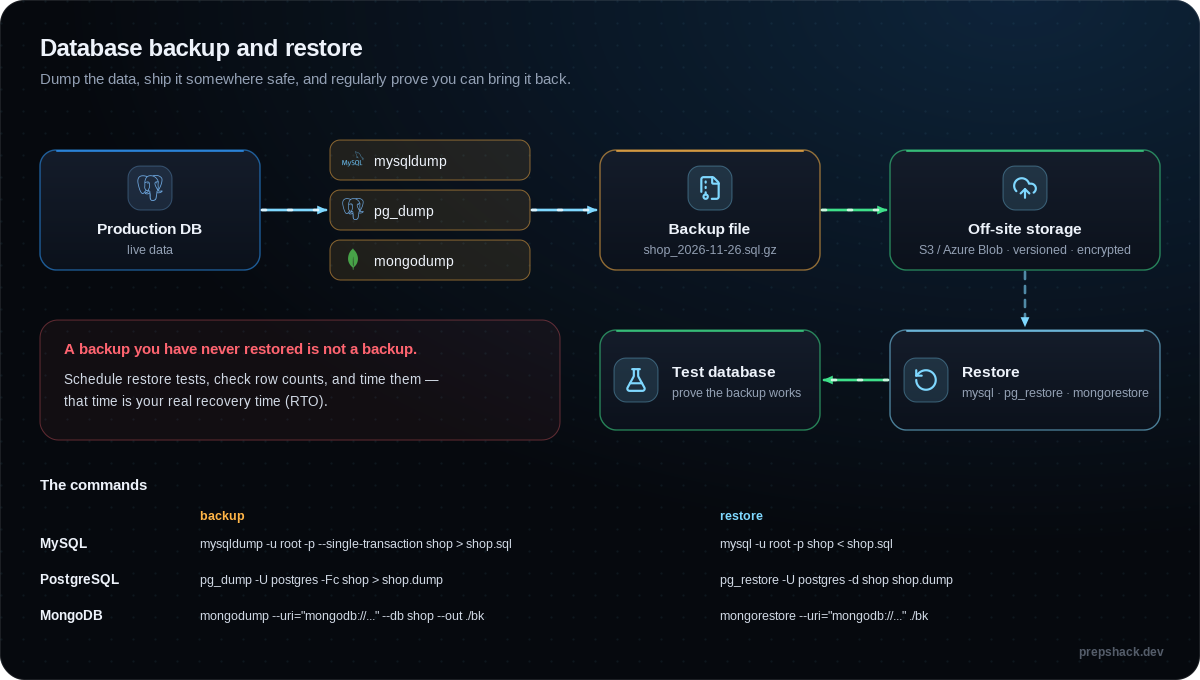
mysqldump writes a database out as a file of SQL statements that can recreate it — CREATE TABLE and INSERT lines.
# Back up one database (consistent snapshot without locking InnoDB tables)
mysqldump -u root -p --single-transaction --routines --triggers shop > shop_$(date +%F).sql

# Compressed
mysqldump -u root -p --single-transaction shop | gzip > shop_$(date +%F).sql.gz

# All databases
mysqldump -u root -p --single-transaction --all-databases > all.sql

# Restore
mysql -u root -p -e "CREATE DATABASE IF NOT EXISTS shop_restore;"
mysql -u root -p shop_restore < shop_2026-11-26.sql
gunzip < shop_2026-11-26.sql.gz | mysql -u root -p shop_restore

# Docker
docker exec mysql mysqldump -u root -prootpass --single-transaction shop > shop.sql
--single-transactiongives a consistent snapshot while the app keeps running (for InnoDB, the default engine).- Store backups off the server (S3, Azure Blob), encrypted, and test restores regularly.
- For big databases, physical backup tools (Percona XtraBackup) or managed snapshots are faster than mysqldump.
8. Replication and managed MySQL
- Replication copies every change from a primary to one or more replicas. Replicas serve read traffic and can be promoted if the primary fails. Watch replication lag (
SHOW REPLICA STATUS\G→Seconds_Behind_Source). - Amazon RDS for MySQL / Aurora MySQL and Azure Database for MySQL run MySQL for you: automatic backups, patching, Multi-AZ failover and read replicas. You still create databases, users and grants exactly as above — you just don't manage the server. In most companies, production MySQL runs on a managed service like these.
9. Common problems
| Problem | Cause | Fix |
|---|---|---|
Access denied for user 'x'@'10.0.1.5' |
Wrong password, or user not allowed from that host | Check SELECT user, host FROM mysql.user;, fix the host part |
Can't connect to MySQL server on 'host' (110) |
Timeout — firewall / security group / bind-address | Open 3306 to the app, set bind-address |
Too many connections |
App pools exceed max_connections |
Reduce pool sizes or raise the limit |
| Disk full | Binary logs or data grew | PURGE BINARY LOGS, set binlog_expire_logs_seconds, add disk |
| Slow queries | Missing indexes | Enable slow query log, EXPLAIN the query, add an index |
10. Key terms at a glance
| Term | Meaning in one line |
|---|---|
| Database / schema | A named container of tables |
| Table, row, column | Where data lives; one record; one field |
| Primary key | Uniquely identifies a row |
| Foreign key | Links a row to a row in another table |
'user'@'host' |
A MySQL account and where it may connect from |
| GRANT / REVOKE | Give or remove permissions |
| mysqldump | Logical backup to a SQL file |
| InnoDB | Default storage engine with transactions |
| Replication | Copying changes from primary to replicas |
| RDS / Aurora | AWS managed MySQL services |