1. What is Linux and why DevOps engineers need it
Linux is an operating system — the software that sits between the hardware and your programs, like Windows or macOS. The difference is that Linux is free, open source and built to run servers.
Almost everything a DevOps engineer touches runs on Linux:
- Cloud servers — most EC2 instances and Azure VMs run Linux.
- Containers — Docker images are built on Linux (Alpine, Debian, Ubuntu).
- Kubernetes nodes — every worker node is a Linux machine.
- CI/CD runners — Jenkins agents and GitHub Actions runners are usually Linux.
So when a pipeline fails, a container crashes or a server runs out of disk, you'll be fixing it in a Linux terminal.
Distributions (distros)
Linux comes in "flavours" called distributions. They share the same kernel but differ in tools and package managers.
| Family | Popular distros | Package manager | Where you'll see it |
|---|---|---|---|
| Debian | Ubuntu, Debian | apt |
Most cloud servers, many Docker images |
| Red Hat | RHEL, Rocky, AlmaLinux, Amazon Linux | dnf / yum |
Enterprises, banks, AWS |
| Alpine | Alpine | apk |
Very small Docker images |
2. How Linux is built
Linux works in layers. Your programs never talk to the hardware directly — they ask the kernel, and the kernel does it for them.
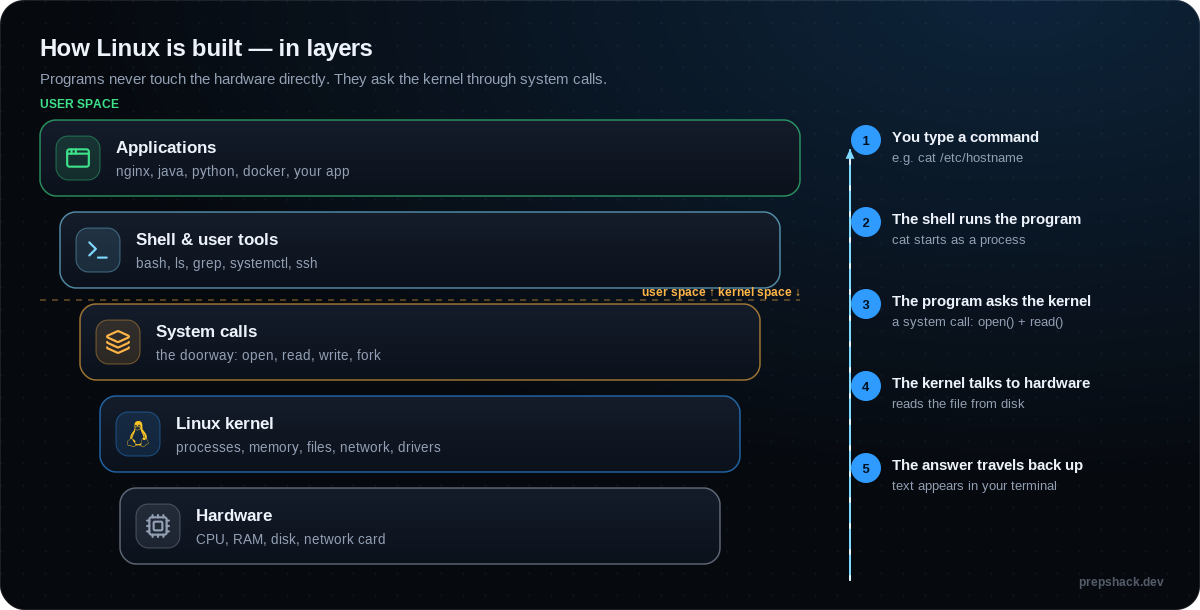
- Hardware — CPU, memory, disks, network card.
- Kernel — the core of Linux. It manages processes, memory, files, networking and drivers.
- System calls — the doorway programs use to ask the kernel for something (open a file, send network data).
- Shell — the program that reads your commands, usually bash.
- Applications — Nginx, Java apps, Docker, everything else.
Why this matters for DevOps: containers share the host's kernel. That's why a container doesn't need its own operating system kernel, and why it starts in milliseconds.
3. The filesystem: where everything lives
In Linux, everything starts at / (root), and everything is a file — even devices and running processes.
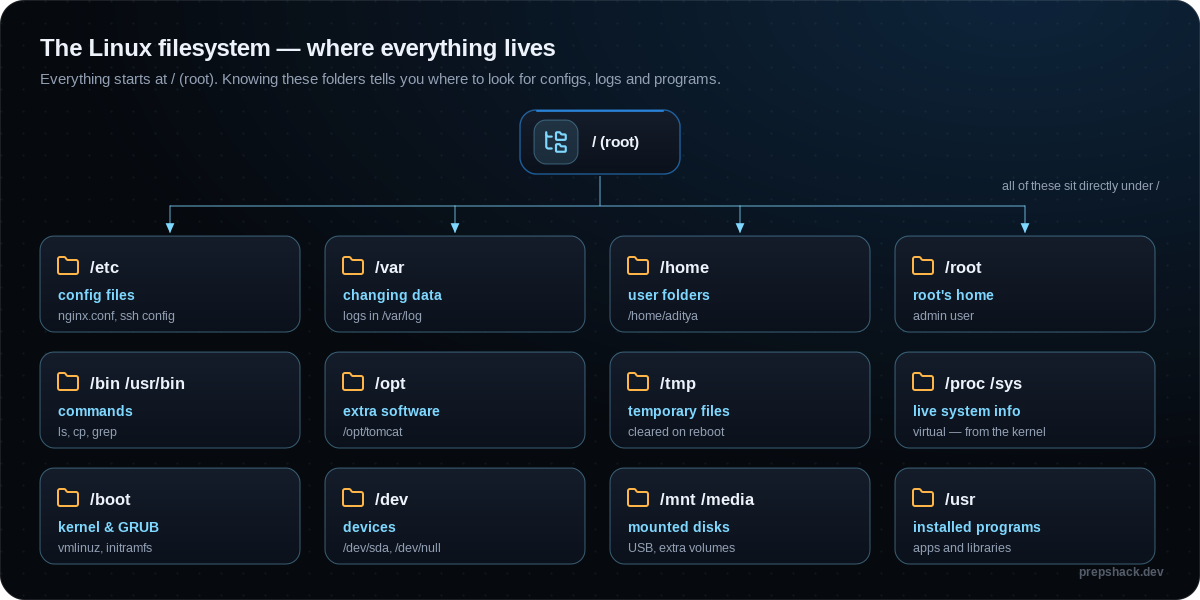
The folders you'll use most:
/etc— configuration files. Nginx config is in/etc/nginx/, SSH config in/etc/ssh/./var/log— log files. The first place to look when something breaks./home/<user>— each user's personal folder./opt— extra software you install yourself, such as Tomcat./tmp— temporary files, often cleared on reboot.
Moving around
pwd                 # where am I?
ls -la              # list files, including hidden ones, with details
cd /var/log         # go to a folder
cd ~                # go to your home folder
cd ..               # go up one level
Working with files
mkdir -p app/config          # create folders (-p creates parents too)
touch app.log                # create an empty file
cp app.conf app.conf.bak     # copy
mv old.txt new.txt           # move or rename
rm file.txt                  # delete a file
rm -r old-folder             # delete a folder and everything in it (careful!)

cat app.conf                 # print a whole file
less /var/log/syslog         # read a long file page by page (q to quit)
head -20 app.log             # first 20 lines
tail -f app.log              # follow a log live as new lines arrive
Finding things
grep "ERROR" app.log                 # lines containing ERROR
grep -ri "timeout" /etc/nginx/       # search a folder, ignore case
find /var/log -name "*.log" -mtime -1     # .log files changed in the last day
find / -size +500M 2>/dev/null       # files bigger than 500 MB
4. Users, groups and sudo
Linux is multi-user. Every file belongs to a user and a group, and every process runs as some user.
- root is the superuser — it can do anything. Logging in as root directly is risky.
- sudo lets a normal user run one command as root, and it's logged.
whoami                               # which user am I?
id                                   # my user ID and groups
sudo useradd -m -s /bin/bash deploy  # create user "deploy" with a home folder
sudo passwd deploy                   # set a password
sudo usermod -aG docker deploy       # add deploy to the docker group
sudo -u deploy whoami                # run a command as another user
User accounts are stored in /etc/passwd, groups in /etc/group, and who can use sudo is set in /etc/sudoers (always edit it with visudo).
5. File permissions
Every file has permissions for three kinds of users: the owner, the group and everyone else.
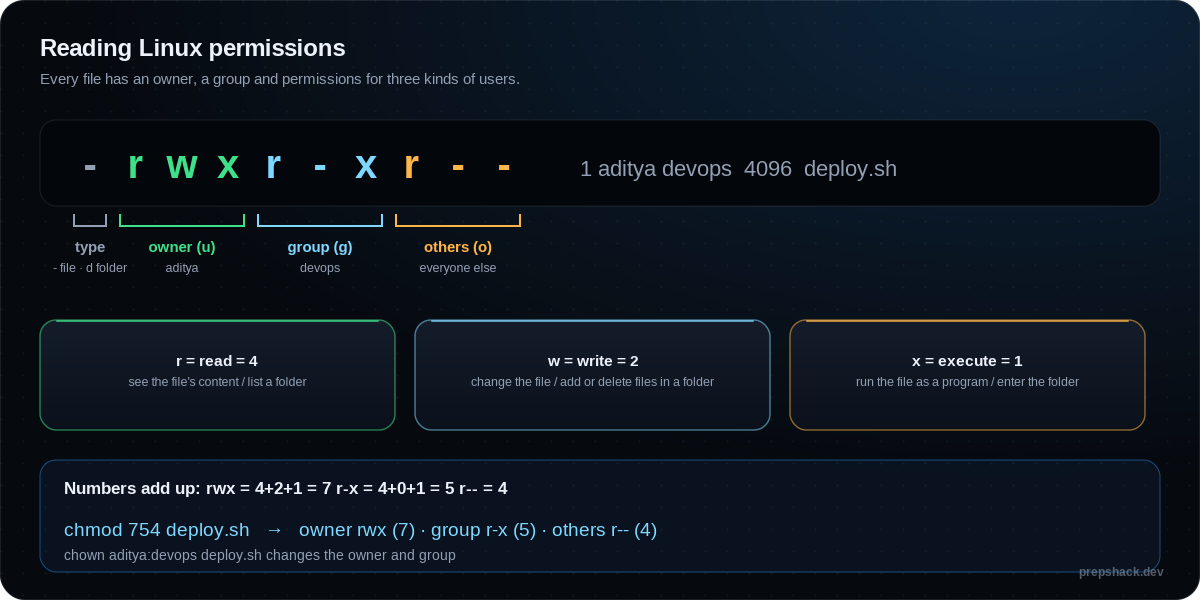
ls -l deploy.sh
# -rwxr-xr-- 1 aditya devops 4096 Nov 26 10:00 deploy.sh

chmod +x deploy.sh           # make a script executable
chmod 755 deploy.sh          # owner rwx, group r-x, others r-x
chmod 600 ~/.ssh/id_ed25519  # private key: only the owner can read it
chown deploy:deploy app.log  # change owner and group
Common values to remember: 755 for scripts and folders, 644 for normal files, 600 for private keys and secrets.
Real example: SSH refuses to use a private key if others can read it — you'll see "UNPROTECTED PRIVATE KEY FILE". The fix is
chmod 600 ~/.ssh/id_ed25519.
6. Processes and services
A process is a running program. Every process has a PID (process ID).
ps aux | grep nginx       # find nginx processes
top                       # live view of CPU and memory use (q to quit)
htop                      # a friendlier top, if installed
kill 1234                 # ask process 1234 to stop nicely (SIGTERM)
kill -9 1234              # force-kill it (SIGKILL) — last resort
A service is a process that runs in the background, starts at boot and is managed by systemd.
sudo systemctl start nginx      # start now
sudo systemctl enable nginx     # start automatically at boot
systemctl status nginx          # is it running? see recent logs
sudo systemctl restart nginx    # restart after a config change
journalctl -u nginx -f          # follow the service's logs
Running your own app as a service
# /etc/systemd/system/orders.service
[Unit]
Description=Orders API
After=network.target

[Service]
User=deploy
WorkingDirectory=/opt/orders
ExecStart=/usr/bin/java -jar /opt/orders/orders.jar
Restart=on-failure
Environment=SPRING_PROFILES_ACTIVE=prod

[Install]
WantedBy=multi-user.target
sudo systemctl daemon-reload            # tell systemd about the new file
sudo systemctl enable --now orders      # enable at boot and start now
Now the app starts on boot and restarts automatically if it crashes.
7. Installing software
# Ubuntu / Debian
sudo apt update                 # refresh the list of available packages
sudo apt install -y nginx       # install
sudo apt remove nginx           # remove

# RHEL / Rocky / Amazon Linux
sudo dnf install -y nginx
sudo dnf remove nginx
Always run apt update before apt install on a fresh server, or you may get "package not found" errors.
8. Logs
When something breaks, logs tell you why.
journalctl -u nginx --since "1 hour ago"   # logs for one service
journalctl -p err -b                       # all errors since the last boot
tail -f /var/log/nginx/error.log           # follow an app's log file
dmesg -T | tail                            # kernel messages (disk, memory, hardware)
9. SSH: logging in to servers
SSH is how you log in to remote Linux servers securely. Companies use key-based login instead of passwords.
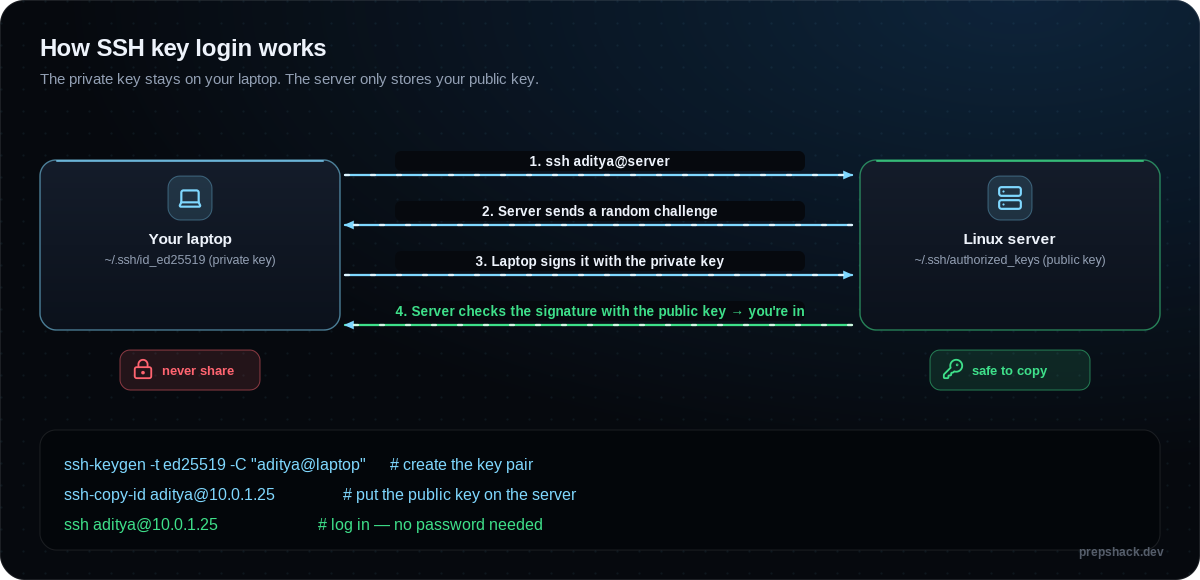
ssh-keygen -t ed25519 -C "aditya@laptop"     # create a key pair (do this once)
ssh-copy-id [email protected]                 # copy your public key to the server
ssh [email protected]                         # log in
ssh -i ~/.ssh/aws-key.pem ec2-user@<ip>      # log in to EC2 with a downloaded key
scp app.jar [email protected]:/opt/orders/    # copy a file to the server
Hardening SSH on a server (in /etc/ssh/sshd_config), then sudo systemctl restart sshd:
PermitRootLogin no            # no direct root login
PasswordAuthentication no     # keys only
10. Checking disk, memory and CPU
These are the commands you'll run in almost every incident.
df -h                    # disk space per filesystem — is any disk 100% full?
du -sh /var/log/*        # which folders are using the space?
free -h                  # memory and swap usage
uptime                   # load average for 1, 5 and 15 minutes
nproc                    # number of CPU cores
top                      # which process uses the most CPU or memory?
ss -tulpn                # which ports are open, and which process owns them?
How to read load average: compare it with the number of CPU cores. On a 4-core machine, a load of 4.0 means fully busy; 8.0 means processes are waiting.
A real troubleshooting example
Problem: the app stopped writing logs and crashed with "No space left on device".
df -h                          # /  is at 100%
sudo du -sh /var/* | sort -h   # /var/log is 18 GB
sudo du -sh /var/log/* | sort -h
# app.log is 17 GB — log rotation was never set up
sudo truncate -s 0 /var/log/app/app.log   # free the space now without breaking the app
Then fix it for good with logrotate, so logs are compressed and old ones deleted automatically.
11. Key terms at a glance
| Term | Meaning in one line |
|---|---|
| Kernel | The core of Linux that controls hardware, processes and memory |
| Shell | The program that reads your commands (bash) |
| Distro | A Linux "flavour" such as Ubuntu or RHEL |
| root | The all-powerful admin user |
| sudo | Run one command as root, with a log entry |
| PID | The ID number of a running process |
| systemd | Starts and manages services; PID 1 |
| Daemon | A background service, such as sshd or nginx |
| SSH | Secure remote login to servers |
| Mount | Attaching a disk to a folder in the filesystem |