1. What shell scripting is and why DevOps engineers write scripts
A shell script is a text file full of Linux commands that run one after another, automatically. Anything you can type in a terminal, you can put in a script and run again tomorrow with one command.
DevOps engineers write scripts every week. Some everyday examples:
- Server setup: install packages, create users, copy config files on a new machine.
- Health checks: check disk space, memory or whether a service is running, and alert if not.
- Backups: dump a database every night and upload the file to S3 or Azure Blob.
- Log cleanup: delete or compress logs older than 7 days.
- Pipeline steps: most Jenkins, GitHub Actions and GitLab jobs are just small shell scripts in a
run:orshblock.
Why Bash? Bash is the default shell on almost every Linux server, Docker image and CI runner. A Bash script runs everywhere without installing anything. For bigger logic (APIs, JSON, complex data) we switch to Python, which comes later in the roadmap.
2. Your first script, line by line
Every real script has the same building blocks. Look at the picture first, then we'll go through each part.
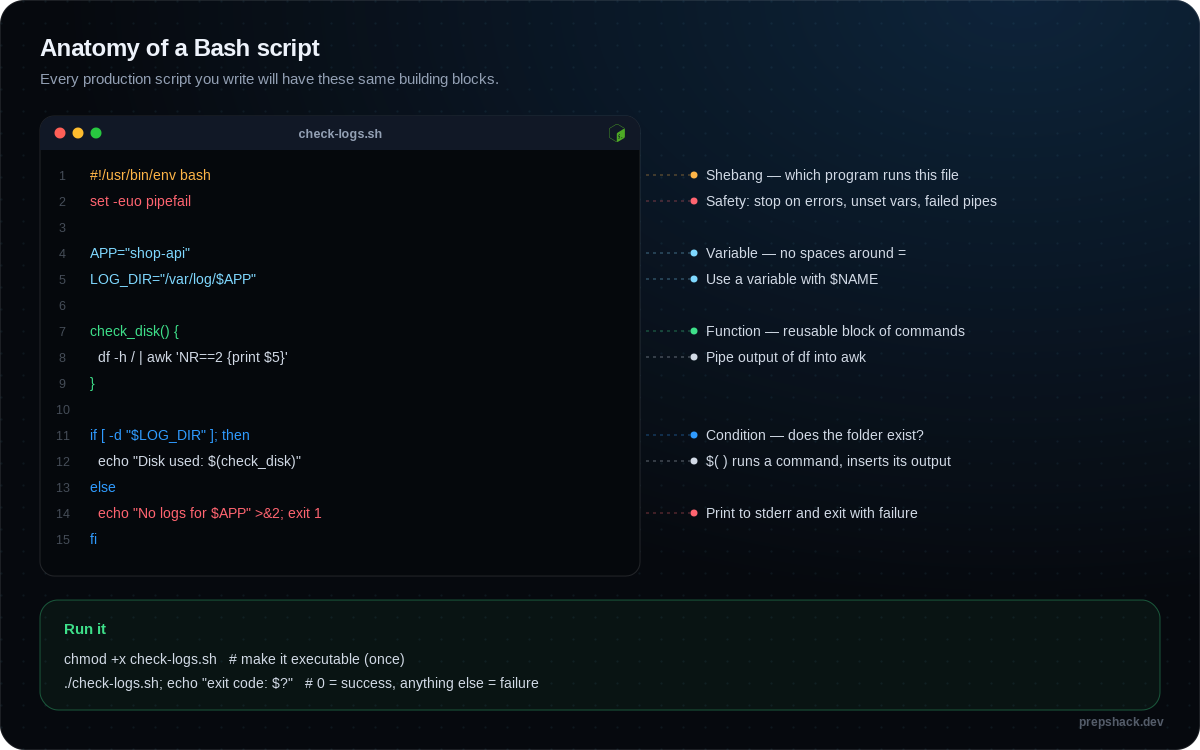
#!/usr/bin/env bash
set -euo pipefail

APP="shop-api"
echo "Checking $APP on $(hostname)"
#!/usr/bin/env bash— the shebang. It must be the very first line. It tells Linux which program should run the file.set -euo pipefail— the safety line. We'll explain it fully in section 7. Put it in every script.APP="shop-api"— creates a variable.$(hostname)— runs thehostnamecommand and puts its output into the text.
To run it:
chmod +x check.sh     # give it execute permission (only once)
./check.sh            # run it
bash check.sh         # or run it with bash directly, no chmod needed
3. Variables
NAME="payments"          # no spaces around =  (NAME = "x" is an error)
PORT=8080
echo "Service $NAME runs on port $PORT"
echo "Log file: ${NAME}_app.log"   # use { } when text follows the name directly
Always put quotes around variables
FILE="my report.txt"
rm $FILE      # WRONG: bash sees two files, "my" and "report.txt"
rm "$FILE"    # RIGHT: one file called "my report.txt"
This one habit prevents a huge number of bugs.
Command output, arguments and environment variables
TODAY=$(date +%F)              # 2026-11-26 — save a command's output
echo "First argument: $1"      # ./deploy.sh staging  → $1 is "staging"
echo "All arguments: $@"
echo "Number of arguments: $#"
echo "Running as: $USER, home is $HOME"   # environment variables
ENV="${1:-dev}"                 # use $1, or "dev" if nothing was passed
Real example: a deploy script that needs an environment name.
#!/usr/bin/env bash
set -euo pipefail
ENV="${1:?Usage: ./deploy.sh <dev|staging|prod>}"   # stop with a message if missing
echo "Deploying to $ENV"
4. Conditions: making decisions
if [ "$ENV" = "prod" ]; then
  echo "Production deploy — asking for confirmation"
elif [ "$ENV" = "staging" ]; then
  echo "Staging deploy"
else
  echo "Dev deploy"
fi
The tests you'll use most:
| Test | True when… |
|---|---|
[ -f /etc/nginx/nginx.conf ] |
the file exists |
[ -d /var/log/app ] |
the folder exists |
[ -z "$VAR" ] |
the variable is empty |
[ -n "$VAR" ] |
the variable is not empty |
[ "$a" = "$b" ] |
two strings are equal |
[ "$n" -gt 80 ] |
number is greater than 80 (-lt, -eq, -ge, -le) |
[[ ... ]]is Bash's improved version of[ ... ]. It handles empty variables more safely and allows&&,||and pattern matching. In Bash scripts,[[ ]]is a good default.
Real example: disk alert
USAGE=$(df / --output=pcent | tail -1 | tr -dc '0-9')   # e.g. 87
if [[ "$USAGE" -gt 80 ]]; then
  echo "ALERT: root disk is ${USAGE}% full on $(hostname)"
fi
Checking if a command worked
if systemctl is-active --quiet nginx; then
  echo "nginx is running"
else
  echo "nginx is down — restarting"
  sudo systemctl restart nginx
fi
if runs the command and checks its exit code (section 7). Exit code 0 means "true".
5. Loops: doing things many times
for loop over a list
for SERVER in web1 web2 web3; do
  echo "Checking $SERVER"
  ssh "$SERVER" "uptime"
done
for loop over files
for LOG in /var/log/app/*.log; do
  gzip "$LOG"
done
while loop: read a file line by line
while read -r HOST; do
  ping -c 1 "$HOST" > /dev/null && echo "$HOST up" || echo "$HOST DOWN"
done < servers.txt
Retry until something is ready
This pattern appears in almost every deploy script — wait for an app to become healthy.
for i in {1..30}; do
  if curl -fs http://localhost:8080/health > /dev/null; then
    echo "App is healthy"; break
  fi
  echo "Waiting for app... ($i/30)"; sleep 5
done
6. Functions
A function is a named block of commands you can call many times. It keeps scripts short and readable.
log() {
  echo "[$(date '+%F %T')] $*"
}

check_service() {
  local name="$1"          # local = only exists inside this function
  if systemctl is-active --quiet "$name"; then
    log "$name OK"
    return 0
  else
    log "$name FAILED"
    return 1
  fi
}

check_service nginx
check_service docker || log "Docker needs attention"
- Arguments arrive as
$1,$2— the same as for the script. returnsets the function's exit code (0 = success). To give back text,echoit and capture it:result=$(my_func).- Use
localfor variables inside functions so they don't clash with the rest of the script.
7. Exit codes and safe scripts
Every command finishes with a number called the exit code. 0 means success. Anything else means something went wrong. You can see the last one with $?.
ls /tmp;          echo $?    # 0
ls /not-here;     echo $?    # 2
By default, Bash keeps going after a command fails. That is dangerous:
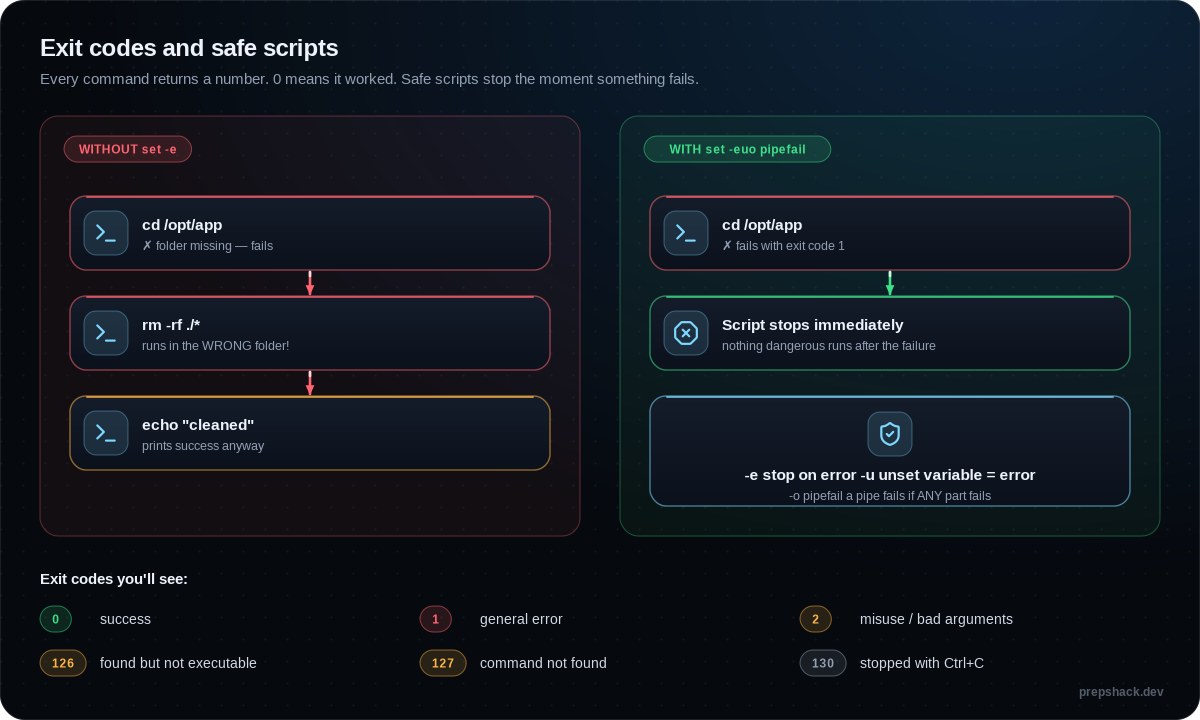
cd /opt/app      # fails — the folder doesn't exist
rm -rf ./*       # still runs — in whatever folder you were in!
That's why every script should start with:
set -euo pipefail
-e— stop the script as soon as any command fails.-u— treat a missing variable as an error (catches typos like$APP_NAEM).-o pipefail— ina | b | c, fail if any part fails, not just the last one.
When you expect a command might fail, handle it explicitly:
grep "ERROR" app.log || true            # it's fine if there are no errors
if ! command -v docker > /dev/null; then
  echo "Docker is not installed" >&2
  exit 1                                 # your own exit code: failure
fi
In CI/CD this matters a lot. Jenkins and GitHub Actions decide pass/fail from the exit code. A script that hides errors makes a broken build look green.
8. Pipes, redirection, grep, sed and awk
A pipe | sends the output of one command into the next command as its input. Small tools chained together can answer real questions in one line.
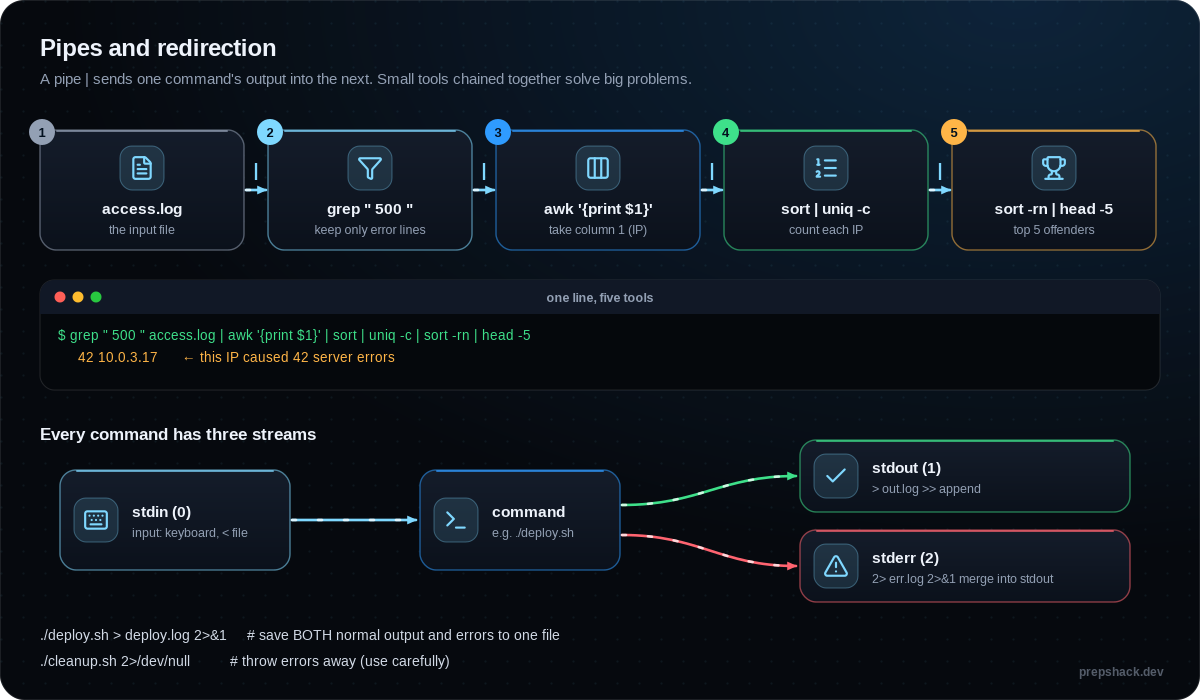
Redirection
echo "hello" > out.txt        # write to a file (replaces it)
echo "again" >> out.txt       # append to the end
./deploy.sh 2> errors.log     # save only errors (stderr)
./deploy.sh > all.log 2>&1    # save normal output AND errors together
./noisy.sh > /dev/null 2>&1   # throw all output away
grep — find lines
grep "ERROR" app.log            # lines containing ERROR
grep -i "timeout" app.log       # ignore upper/lower case
grep -v "health" access.log     # lines NOT containing "health"
grep -c "500" access.log        # count matching lines
grep -rn "DB_HOST" /etc/app/    # search all files in a folder, show line numbers
sed — find and replace
sed 's/8080/9090/' app.conf          # print the file with 8080 → 9090 (first per line)
sed -i 's/8080/9090/g' app.conf      # change the file itself (-i), every match (g)
sed -i "s/IMAGE_TAG/$TAG/" k8s.yaml  # common in pipelines: put the image tag into YAML
awk — work with columns
awk '{print $1}' access.log                 # first column (client IP)
df -h | awk 'NR>1 {print $5, $6}'           # use%, mount — skip the header row
awk -F: '{print $1}' /etc/passwd            # -F: means columns are split by ":"
awk '$9 == 500' access.log                  # only lines where column 9 is 500
Other tools you'll chain together
sort, uniq -c (count duplicates), wc -l (count lines), head/tail, cut -d, -f2 (column from CSV), tr (translate characters), xargs (turn lines into arguments).
Real interview question: "Find the top 5 IPs hitting our server."
awk '{print $1}' access.log | sort | uniq -c | sort -rn | head -5
9. Cron: running scripts on a schedule
Cron is the Linux scheduler. You give it a time pattern and a command, and it runs the command at those times — even when nobody is logged in.
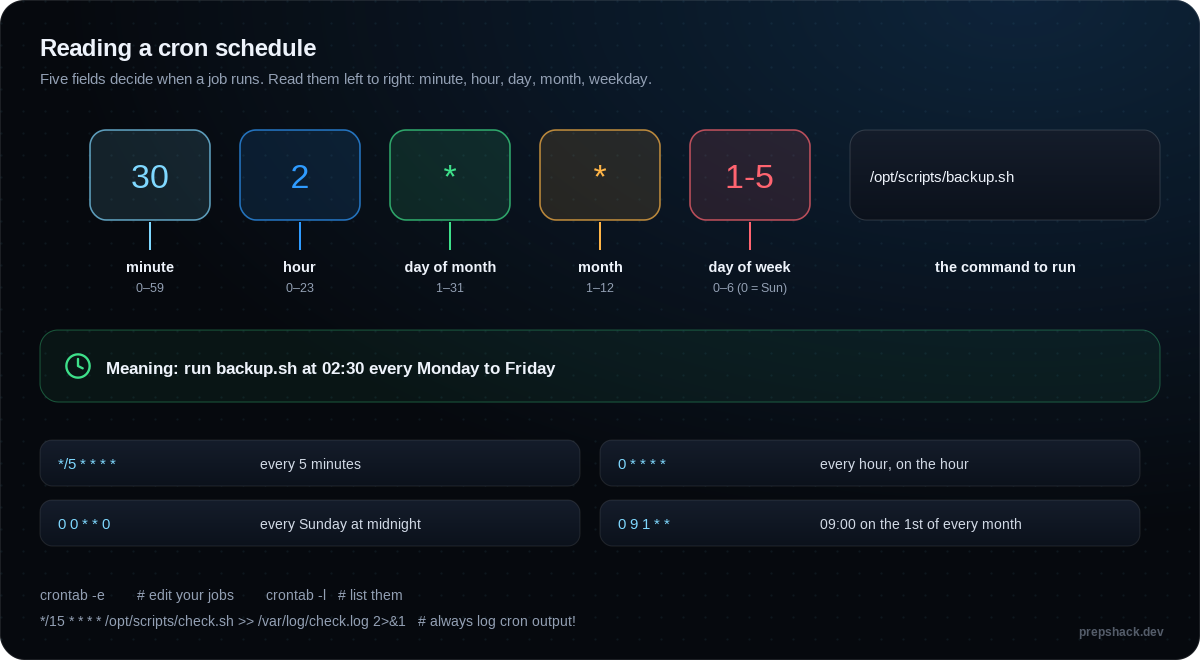
crontab -e      # edit your scheduled jobs
crontab -l      # list them
Example: back up the database every night at 01:00 and keep the output.
0 1 * * * /opt/scripts/db-backup.sh >> /var/log/db-backup.log 2>&1
Three mistakes everyone makes with cron:
- No output saved. If the job fails, you never find out. Always redirect to a log file.
- Different environment. Cron runs with a tiny
PATH. Use full paths (/usr/bin/docker, notdocker) or setPATH=at the top of the crontab. - Wrong time zone. Cron uses the server's time zone, which is often UTC on cloud servers.
In Kubernetes, the same idea is a CronJob, and it uses the exact same five-field schedule.
10. A complete real-world script
Here is a backup script like the ones teams actually run. Read it slowly — it uses everything from this lesson.
#!/usr/bin/env bash
# Back up a PostgreSQL database and delete backups older than 7 days.
set -euo pipefail

DB_NAME="${1:?Usage: $0 <database>}"
BACKUP_DIR="/var/backups/postgres"
STAMP=$(date +%F_%H-%M)
FILE="$BACKUP_DIR/${DB_NAME}_${STAMP}.sql.gz"

log() { echo "[$(date '+%F %T')] $*"; }

cleanup() {
  # runs on exit, even if the script fails halfway
  [[ -f "$FILE.partial" ]] && rm -f "$FILE.partial"
}
trap cleanup EXIT

mkdir -p "$BACKUP_DIR"
log "Starting backup of $DB_NAME"

pg_dump "$DB_NAME" | gzip > "$FILE.partial"
mv "$FILE.partial" "$FILE"
log "Backup written: $FILE ($(du -h "$FILE" | cut -f1))"

find "$BACKUP_DIR" -name "*.sql.gz" -mtime +7 -delete
log "Old backups removed. Done."
What's happening:
${1:?...}stops with a usage message if no database name is passed.trap cleanup EXITruns thecleanupfunction when the script ends for any reason, so half-written files never pile up.- Writing to
.partialand thenmvmeans a backup file only appears when it is complete. find ... -mtime +7 -deleteremoves files older than 7 days.
11. Good habits (that interviewers look for)
- Start every script with
#!/usr/bin/env bashandset -euo pipefail. - Quote every variable:
"$VAR". - Use functions and
localvariables; keep the main flow short. - Print clear log lines with timestamps.
- Send error messages to stderr:
echo "error" >&2. - Never hard-code passwords. Read them from environment variables or a secrets manager.
- Run ShellCheck (
shellcheck script.sh) — it catches quoting bugs and common mistakes automatically. Many teams run it in CI. - Make scripts idempotent: running them twice should be safe. Use
mkdir -p, check before creating users, and so on.
12. Key terms at a glance
| Term | Meaning in one line |
|---|---|
| Shebang | First line #!/usr/bin/env bash — which program runs the script |
| Variable | A named value: NAME="x", used as "$NAME" |
$1, $@, $# |
First argument, all arguments, number of arguments |
$( ) |
Run a command and use its output |
| Exit code | Number a command returns; 0 = success |
set -euo pipefail |
Stop on errors, unset variables and failed pipes |
Pipe | |
Send one command's output into another |
| stdout / stderr | Normal output (1) and error output (2) |
trap |
Run cleanup code when the script exits |
| Cron | Linux scheduler for recurring jobs |
| Idempotent | Safe to run many times with the same result |