1. What Git is and why every team uses it
Git is a version control system: it records every change made to your files, who made it and why, so you can go back to any earlier version at any time.
Without Git, teams email zip files around, overwrite each other's work and have no idea what changed before production broke. With Git:
- Every change is saved as a commit — a snapshot with a message, an author and a time.
- Many people work at the same time on separate branches without disturbing each other.
- You can see exactly what changed, line by line, and undo it.
Git vs GitHub: Git is the tool that runs on your laptop. GitHub, GitLab, Bitbucket and Azure Repos are websites that host Git repositories so a team can share them, review code and run pipelines.
Why DevOps engineers care so much: Git is where everything starts. A push to Git triggers the CI pipeline. In GitOps, Git is the source of truth for what runs in production. Terraform, Kubernetes YAML, Helm charts, Dockerfiles — all live in Git.
2. Setting up Git
git --version
git config --global user.name  "Your Name"
git config --global user.email "[email protected]"
git config --global init.defaultBranch main
Two ways to start:
git init                                   # turn the current folder into a new repo
git clone https://github.com/org/shop.git  # copy an existing repo from GitHub
Both create a hidden .git/ folder. That folder is the repository — all history lives there.
Connecting with SSH keys (how professionals log in)
ssh-keygen -t ed25519 -C "[email protected]"   # create a key pair
cat ~/.ssh/id_ed25519.pub                     # copy this into GitHub → Settings → SSH keys
ssh -T [email protected]                         # test: "Hi <name>! You've successfully authenticated"
git clone [email protected]:org/shop.git         # clone over SSH
3. The three areas: how a change moves
This is the most important picture in this lesson. Your code lives in four places, and each Git command moves it from one to the next.
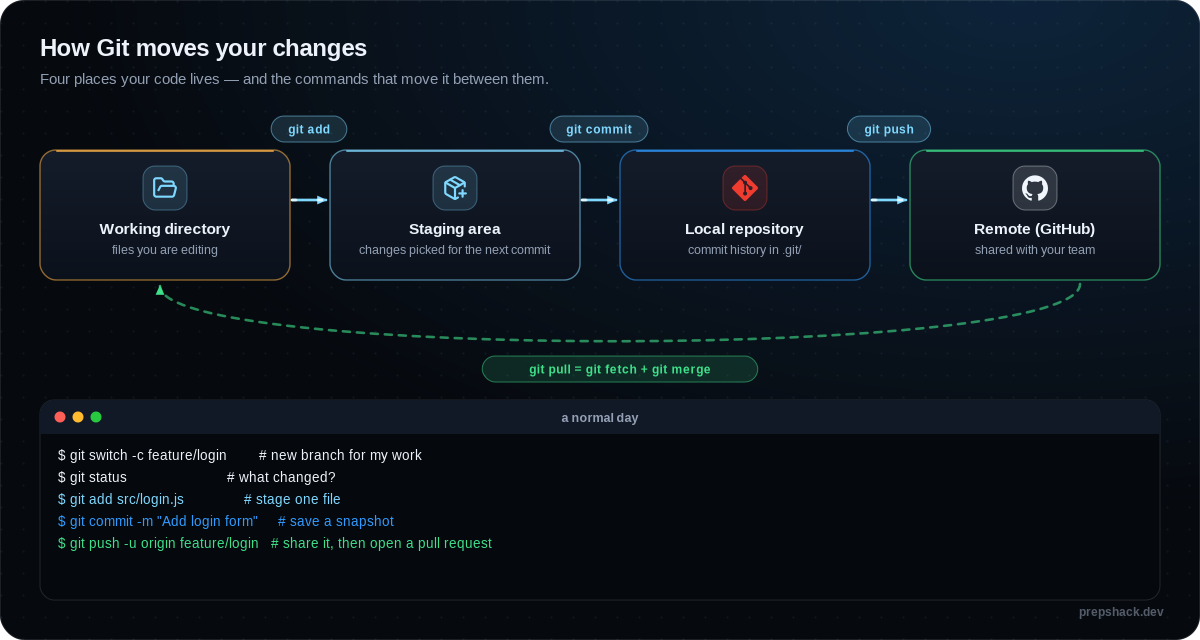
- Working directory — the files you see and edit.
- Staging area (index) — the changes you've chosen to include in the next commit.
- Local repository — your commit history, inside
.git/. - Remote — the shared copy on GitHub that your team uses.
git status                       # what changed, and what's staged?
git diff                         # line-by-line changes not yet staged
git add app.py                   # stage one file
git add .                        # stage everything in this folder
git commit -m "Add health check endpoint"
git push origin main             # send commits to GitHub
git pull                         # get teammates' commits (fetch + merge)
Why is there a staging area? It lets you commit some changes and not others. If you fixed a bug and also started a new feature in the same files, you can stage just the bug fix and commit it on its own, with a clear message.
Looking at history
git log --oneline --graph --all   # compact history with branches drawn
git show a1b2c3d                  # what changed in one commit
git blame app.py                  # who last changed each line, and in which commit
Writing good commit messages
Fix timeout when payment API is slow

The checkout call waited forever if the payment provider hung.
Added a 10s timeout and a retry with backoff.

Refs: SHOP-412
- First line: what changed, under ~60 characters, written as a command ("Fix", "Add", "Remove").
- Then an empty line, then why — the code already shows what.
.gitignore — files Git should never track
node_modules/
target/
*.log
.env
*.tfstate
.terraform/
Never commit secrets (passwords, API keys,
.envfiles). Even if you delete them later, they stay in history. Tools like Gitleaks (Security Tools stage) catch this before it happens.
4. Branches
A branch is a separate line of work. You create one for each feature or bug fix, work on it freely, and merge it into main when it's ready. main stays stable the whole time.
git branch                        # list local branches (* = current)
git switch -c feature/cart        # create a new branch and move to it
git switch main                   # go back to main
git branch -d feature/cart        # delete a branch after it's merged
git push -u origin feature/cart   # publish the branch to GitHub
Under the hood, a branch is just a tiny pointer to a commit. That's why creating branches in Git is instant and cheap — create as many as you need.
HEAD means "where you are right now" — usually the latest commit of your current branch.
5. Merging and rebasing
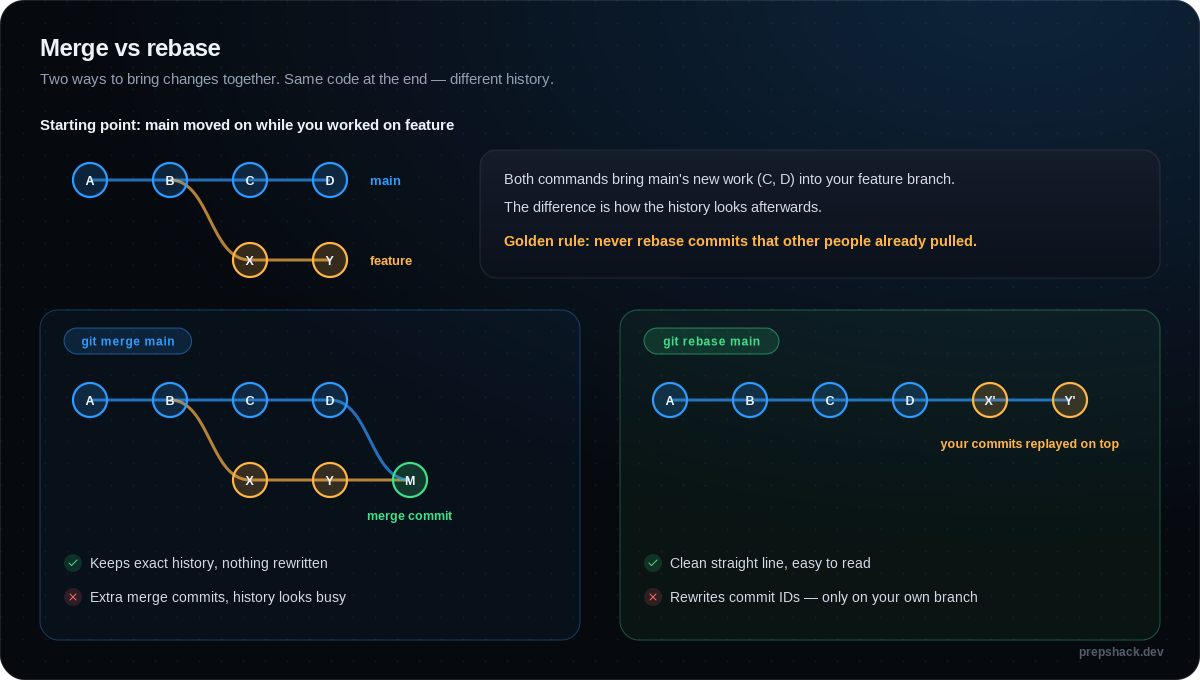
When your branch is done — or when main has moved on and you need the new changes — you combine the two lines of work. There are two ways.
Merge
git switch feature/cart
git merge main
Creates a merge commit that joins both histories. Nothing is rewritten. Safe on shared branches. The history shows exactly what happened, but can look busy.
Fast-forward: if main hasn't moved since you branched, Git simply moves the pointer forward — no merge commit needed.
Rebase
git switch feature/cart
git rebase main
Takes your commits and replays them on top of the latest main, as if you had started your branch today. The result is a clean, straight history. But your commits get new IDs — they are rewritten.
The golden rule
Never rebase commits that other people have already pulled. Rebase your own local or personal branch to tidy it up; merge when working with shared branches.
After rebasing a branch you had already pushed (only your own!), you need git push --force-with-lease — it refuses to overwrite if someone else pushed in the meantime, which makes it much safer than --force.
Squash
Squash merging turns all the commits of a pull request into one commit on main. Teams like it because main stays readable: one commit per feature.
git rebase -i HEAD~4 # interactive rebase: squash, reword or reorder your last 4 commits
6. Resolving merge conflicts
A conflict happens when two branches change the same lines of the same file. Git can't guess which version is right, so it asks you.
<<<<<<< HEAD
timeout: 30
=======
timeout: 60
>>>>>>> feature/slow-api
- Between
<<<<<<<and=======is your current branch's version. - Between
=======and>>>>>>>is the incoming version.
Steps to fix it:
git status                    # shows files "both modified"
# open the file, keep the right version (or combine both), delete the markers
git add config.yaml
git commit                    # finish the merge   (during a rebase: git rebase --continue)
git merge --abort             # or give up and go back to before the merge
How to have fewer conflicts: keep branches short-lived, pull from main often, and make small pull requests.
7. Pull requests and code review
A pull request (PR) — called a merge request (MR) in GitLab — is a request to merge your branch into main. It's where teammates review your code and the CI pipeline checks it, before anything reaches main.
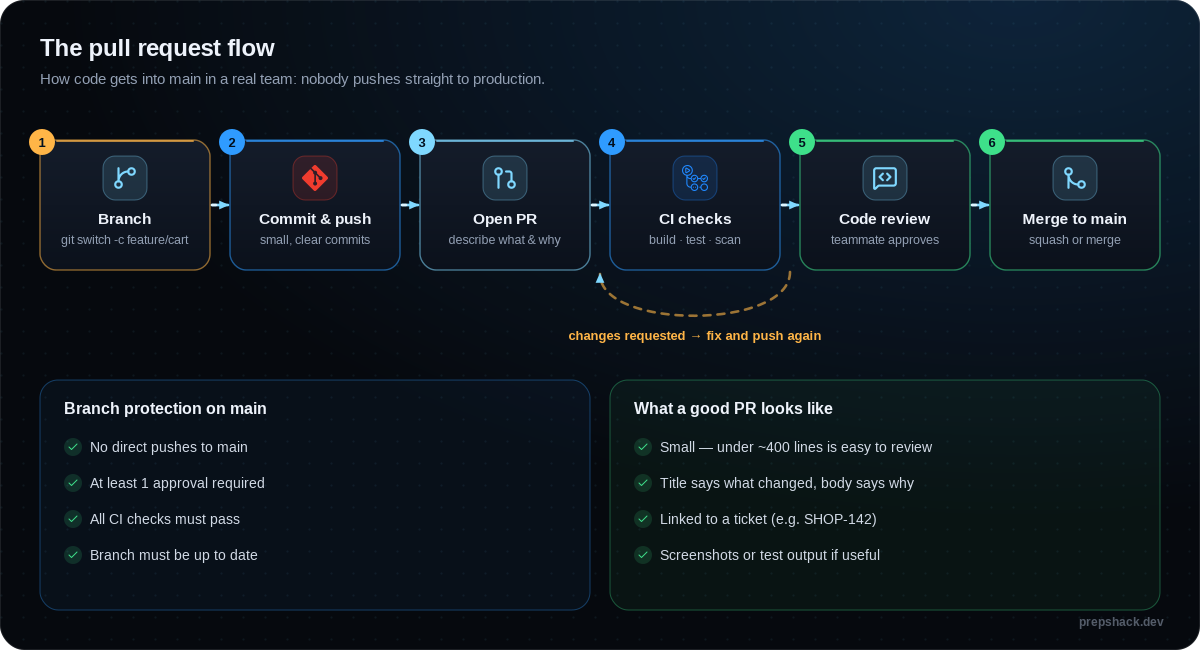
What happens in a real team:
- Create a branch, commit, push.
- Open a PR on GitHub with a clear title and description (what and why).
- CI runs automatically: build, unit tests, SonarQube, Trivy and so on.
- A teammate reviews, leaves comments, and approves or requests changes.
- You push fixes to the same branch — the PR updates automatically.
- Once approved and green, it's merged (often squash-merged) and the branch is deleted.
Branch protection rules on main enforce this: no direct pushes, required approvals, required passing checks. A CODEOWNERS file can automatically request review from the right team (for example, the platform team for anything under terraform/).
8. Branching strategies
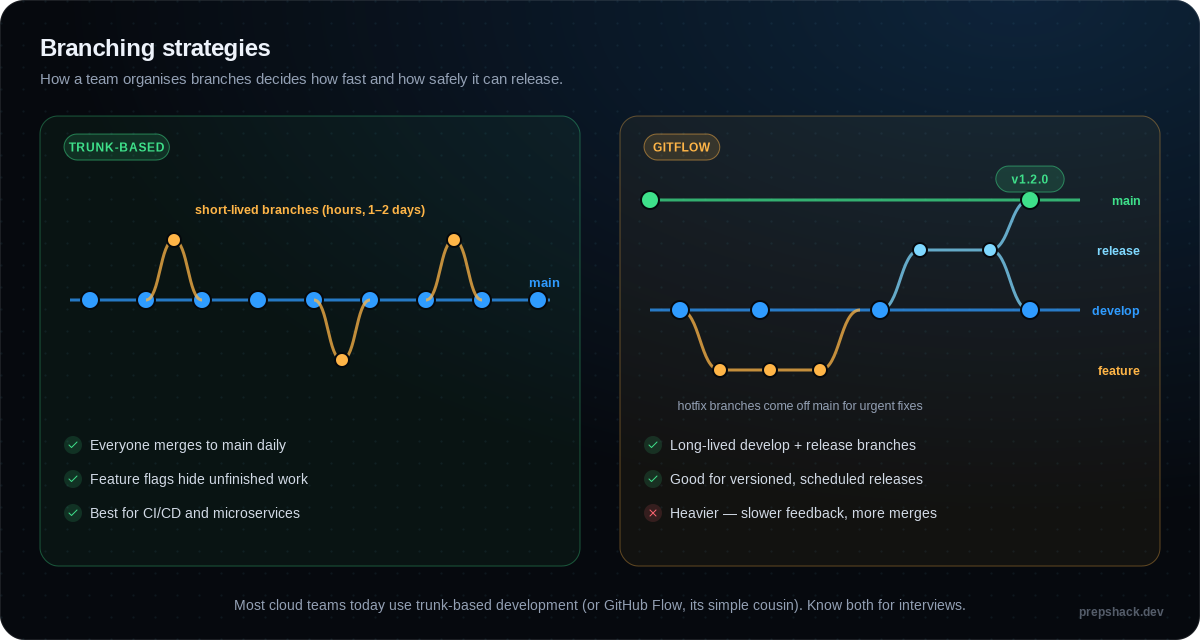
How a team organises its branches is called a branching strategy. Interviewers almost always ask about it.
Trunk-based development
- Everyone works on very short-lived branches (hours to a day or two) and merges to
main(the "trunk") often. - Unfinished features are hidden behind feature flags, so
mainis always releasable. - Best fit for CI/CD, microservices and frequent deploys. This is what most cloud-native teams use.
GitHub Flow is the simple, popular version: branch from main → PR → merge → deploy.
GitFlow
- Long-lived branches:
main(production releases) anddevelop(integration). feature/*branches come offdevelop;release/*branches stabilise a version;hotfix/*branches fix production urgently frommain.- Good for versioned products with scheduled releases (mobile apps, installed software). Heavier and slower for teams that deploy daily.
Release tags
git tag -a v1.4.0 -m "Release 1.4.0"
git push origin v1.4.0
Tags mark exact release points. Pipelines often trigger a production release when a tag like v1.4.0 is pushed.
9. Undoing mistakes
Everyone makes mistakes in Git. What matters is choosing the right tool — and that depends on one question: has anyone else got this commit yet?
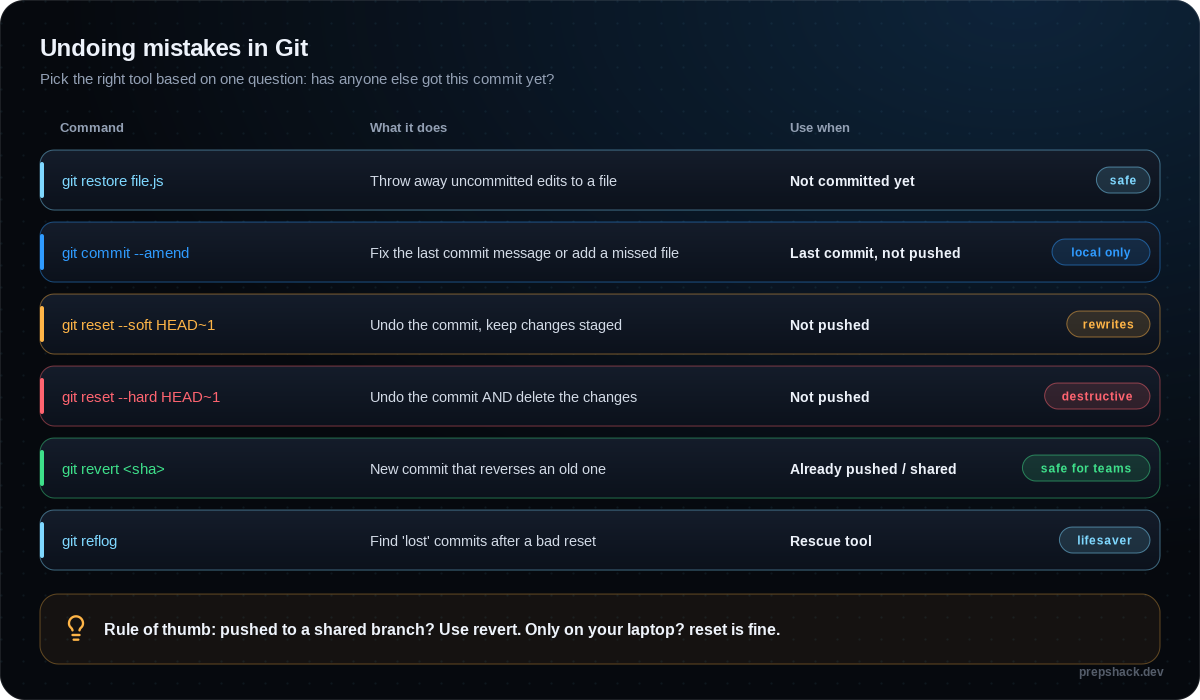
git restore app.py                # throw away uncommitted edits to a file
git restore --staged app.py       # unstage a file (keep the edits)
git commit --amend                # fix the last commit (message or a forgotten file)
git reset --soft HEAD~1           # undo the last commit, keep changes staged
git reset --hard HEAD~1           # undo the last commit AND delete its changes ⚠️
git revert a1b2c3d                # new commit that reverses an old one — safe on shared branches
git stash / git stash pop         # put unfinished work aside, bring it back later
reset vs revert (a classic interview question)
resetmoves the branch pointer backwards and removes commits from history. Fine on your own unpushed work. On a shared branch it breaks everyone else's history.revertadds a new commit that undoes an old one. History stays intact. This is the right way to undo something already onmain.
reflog — the safety net
git reflog
# a1b2c3d HEAD@{0}: reset: moving to HEAD~3
# 9f8e7d6 HEAD@{1}: commit: Add payment retries     ← the "lost" commit
git reset --hard 9f8e7d6          # get it back
Git records everywhere HEAD has been for about 90 days. Commits are almost never truly lost.
A real scenario
Problem: a commit that broke checkout was merged to main and deployed.
git log --oneline -5          # find the bad commit, say 3c4d5e6
git revert 3c4d5e6            # creates "Revert 'Change checkout total calc'"
git push origin main          # pipeline deploys the fix
No history is rewritten, the team keeps working, and the revert itself is recorded.
10. Extras worth knowing
- Git hooks — scripts that run on events like
pre-commitorpre-push. Teams use them to run linters, formatters or secret scanners before code ever leaves the laptop (thepre-commitframework makes this easy). - Signed commits — signing commits with GPG or SSH keys proves the commit really came from you. GitHub shows a "Verified" badge.
- Monorepo vs polyrepo — one big repo for many services (easier shared changes, needs smarter CI), or one repo per service (clear ownership, more repos to manage).
git cherry-pick <sha>— copy one specific commit onto another branch, for example to bring a hotfix into a release branch.git bisect— binary search through history to find which commit introduced a bug.
11. Key terms at a glance
| Term | Meaning in one line |
|---|---|
| Repository | A project tracked by Git, with all its history in .git/ |
| Commit | A saved snapshot with a message, author and time |
| Staging area | Changes chosen for the next commit |
| Branch | A movable pointer to a line of commits |
| HEAD | Where you are right now |
| Remote / origin | The shared copy on GitHub; origin is its default name |
| Merge | Join two branches with a merge commit |
| Rebase | Replay your commits on top of another branch |
| Pull request | Request to merge a branch, with review and CI checks |
| Conflict | Two branches changed the same lines |
| Revert | New commit that undoes an old one |
| Reflog | Log of where HEAD has been — used to recover lost commits |
| Tag | A fixed name for a commit, usually a release like v1.2.0 |